Image Recognition
How Remaku finds images on screen to automate your workflows.
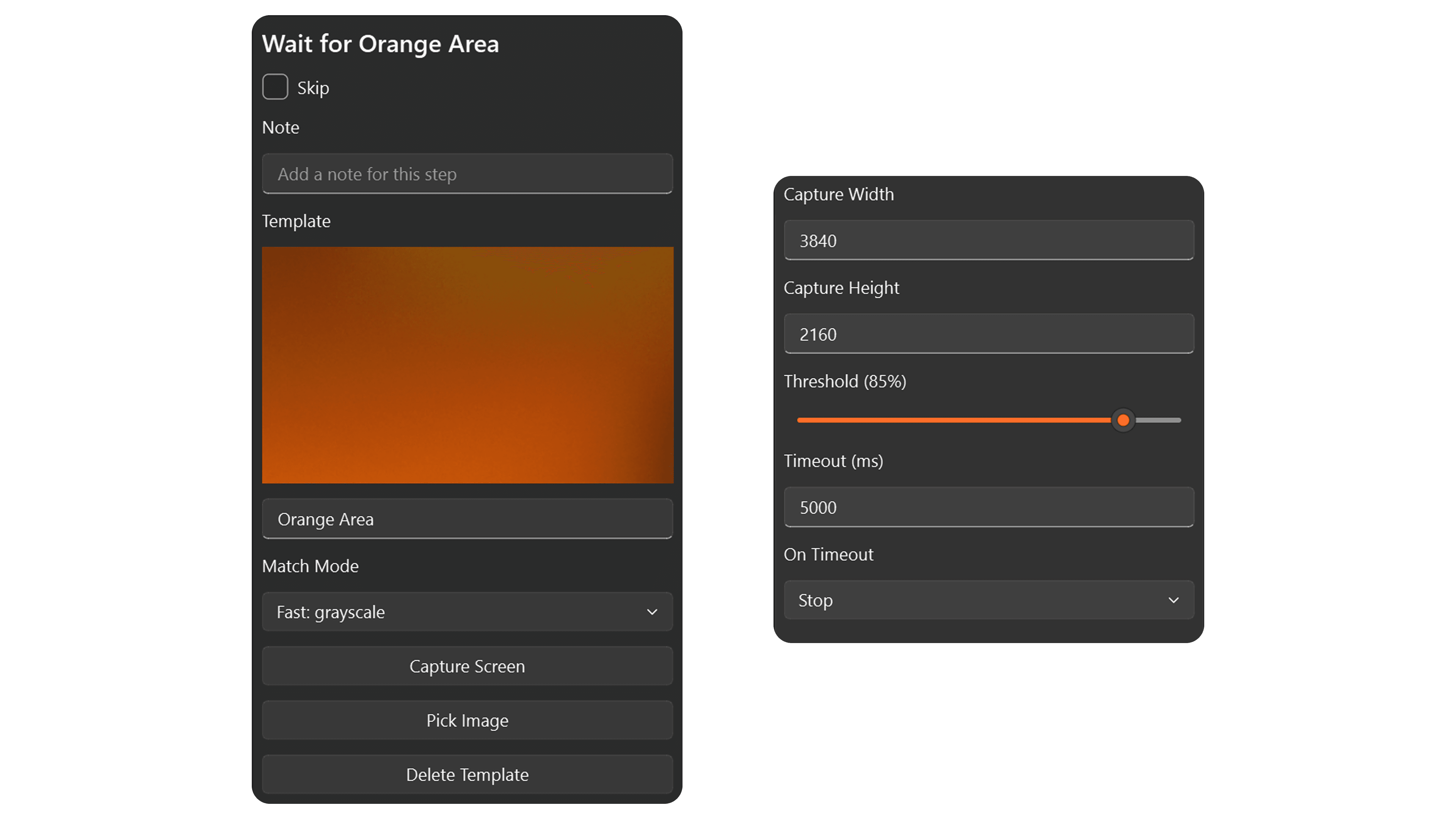
Remaku watches your screen and looks for images you've captured, so your macros can react to what's happening on screen in real time.
How It Works
- Capture a template — Snapshot a small part of the screen (a button, icon, or UI element) to use as a reference image.
- Add an image step — Insert a step that waits for, reacts to, or clicks on that image.
- Run your macro — Remaku continuously scans the screen and acts when it finds a match.
Image Step Types
| Step | What it does |
|---|---|
| Wait Image | Pause the macro until the image appears on screen. |
| If Image | Check if an image is visible and branch accordingly. |
| If Any Image | Scan for multiple images and take the first one that matches. |
| Hold Key Until Gone | Hold a key down while the image is visible, release when it disappears. |
| Click at Image Center | Find an image and click at its center. |
| Move to Image Center | Move the mouse to the center of a found image. |
Adjusting Accuracy
Each image step has a similarity setting (0–100%). A higher value means Remaku requires a closer match before acting. The default of 85% works well for most cases. Lower it if your template changes slightly between runs, or raise it if you need a very precise match.
Gaming Mode
When Gaming Mode is on, Remaku automatically scales templates to match your current screen resolution. This is essential for games where resolutions change. Turn it off for desktop apps where the window size stays the same.
Color Matching
By default, Remaku matches templates in grayscale — fast and works well when shapes are distinct. Switch to color mode when color is the key difference between similar-looking elements.
Managing Templates
- Capture a screen region with the fullscreen selector.
- Pick an existing PNG from your files.
- Preview templates in the properties panel.
- Rename or delete templates anytime.
- Templates are stored with your macro and included when you export.