Macro Variables
Define reusable variables for step properties.
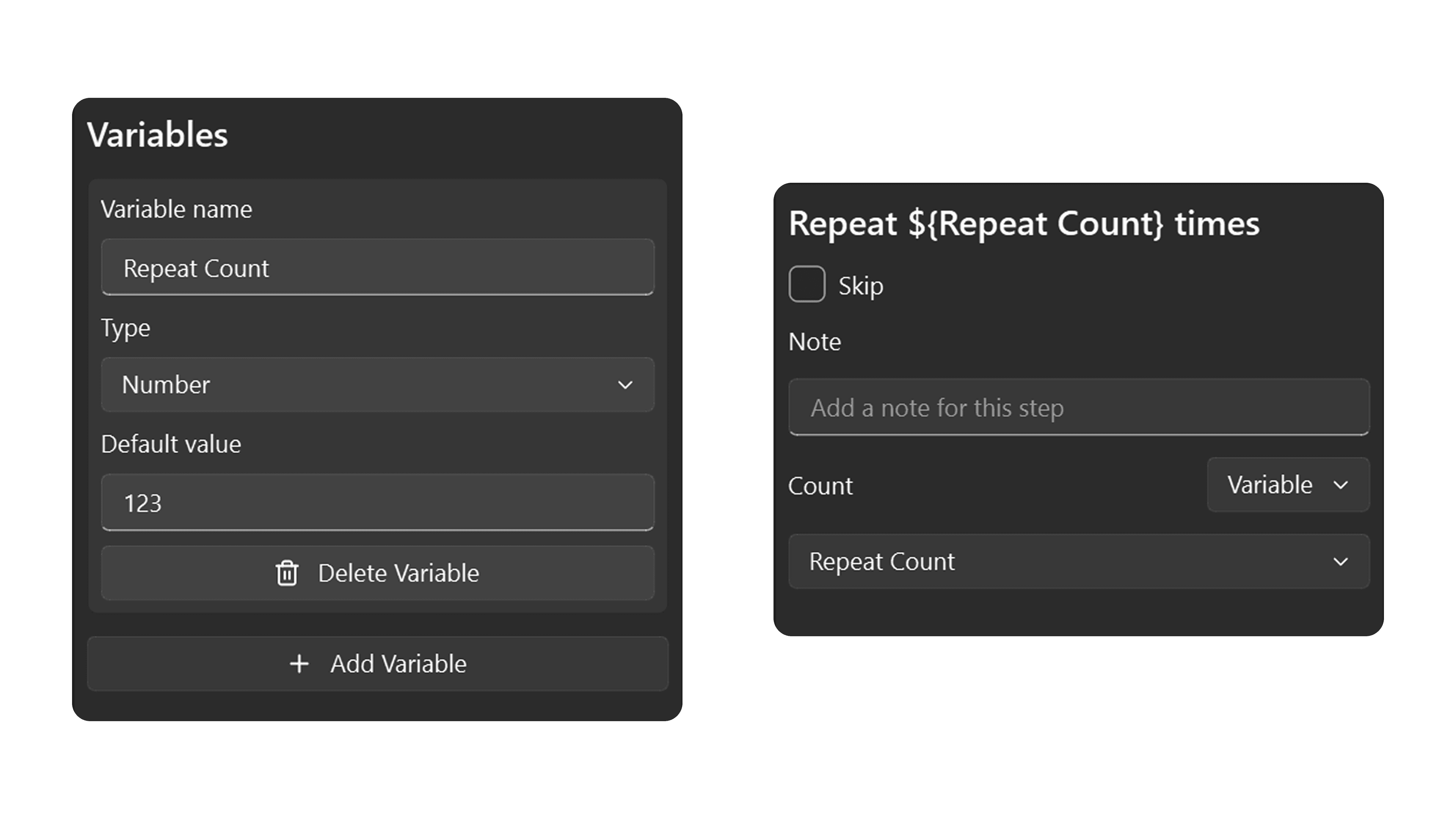
Macro variables let you define named values that can be referenced by steps across your macro. Change the value once, and every step that uses the variable updates automatically — no need to edit each step individually.
Variable Types
Each variable has a label (display name), a type, and a default value. Four types are supported:
| Type | Default Value | Example Use |
|---|---|---|
| Text | "" | Window title, share code |
| Number | 0 | Delays, repeat counts |
| Boolean | false | Feature toggles |
| Key | A | Hotkey assignments |
Defining Variables
- Click the macro root (the empty area in the step tree) to open the macro properties panel.
- Find the Variables section and click Add Variable.
- Give the variable a label — this is the display name shown everywhere it is used.
- Choose a type that matches the kind of value you need.
- Set the default value for the variable.
Note: The internal variable name is generated automatically from the label and must start with a letter, containing only letters, numbers, and underscores (
A-Za-z0-9_).
Using Variables in Steps
When editing a step property that supports variables, a Fixed / Variable toggle appears next to the input field:
- Fixed mode — enter a hardcoded value directly (the default).
- Variable mode — switch to a dropdown that lists only variables whose type matches the property. Select a variable to reference it instead.
Once a property references a variable, the step tree shows the reference as ${Label} so you can see at a glance which steps use variables.
The following step properties support variables: key presses, delays, timeouts, repeat counts, mouse coordinates, scroll amount, image confidence, grid rows/columns, and more.
Renaming Variables
When you rename a variable's label, all steps referencing that variable update automatically. If the new name conflicts with an existing variable, a numeric suffix is appended (e.g., my_var_2) to keep names unique.
Deleting Variables
If you delete a variable that is still used by steps, a confirmation dialog warns you that those steps will become invalid until their references are fixed. After deletion, any step that referenced the deleted variable will stop the macro with an error until you assign a new value.
Copy & Paste
When you copy steps that reference variables, those variables are automatically collected and merged into the target macro when pasted:
- If a variable with the same name and value already exists, the step reuses it.
- If the name exists but the value differs, the pasted variable is automatically renamed.
- If the variable does not exist in the target, it is added.
This makes it safe to share and reuse step sequences across macros without breaking variable references.