Step Editing
Build and maintain macro flows in the editor.
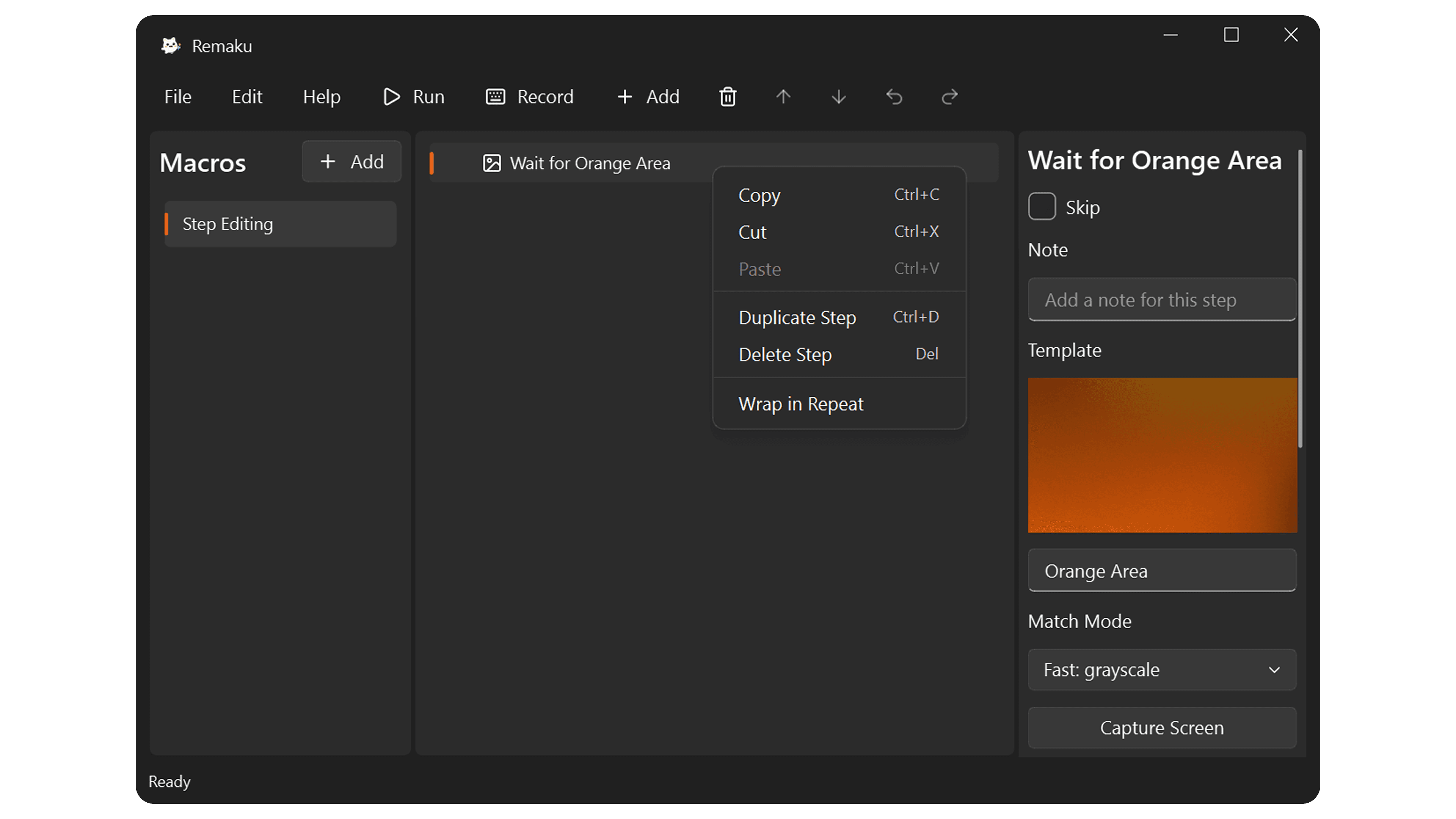
Remaku provides a full step editor with 12 step types, rich property panels, and keyboard-driven workflow so you can build macros quickly. See Step Types for the complete list.
Adding & Organizing
- Add steps from the toolbar Add button or
Ctrl+Shift+N. New steps are inserted after the currently selected step, or inside a container if a Repeat block or branch is selected. - Move steps with Alt+Up and Alt+Down. Steps can move within their list, into and out of containers, and between branches.
- Wrap in Repeat to group selected steps into a loop.
- Right-click any step for quick access to cut, copy, paste, duplicate, delete, and wrap.
Editing Properties
Select a step to edit its details in the right panel. Each step type shows its own property editor — key bindings, durations, template selectors, thresholds, grid settings, and more. All steps also have a skip toggle and an optional note field.
Clipboard & History
- Cut (
Ctrl+X), Copy (Ctrl+C), and Paste (Ctrl+V) steps between macros. Template images are included automatically. - Duplicate (
Ctrl+D) creates a copy of the selected steps right after the originals. - Delete (
Del) removes selected steps and cleans up unused templates. - Undo (
Ctrl+Z) and Redo (Ctrl+Y) track up to 50 changes with step-level descriptions. - Skip individual steps without deleting them — useful for testing or temporarily disabling.
Recording
Press Record to capture your actions live. Recorded steps are inserted into the current macro at the selected position. Editing is locked while a macro is running or recording.